
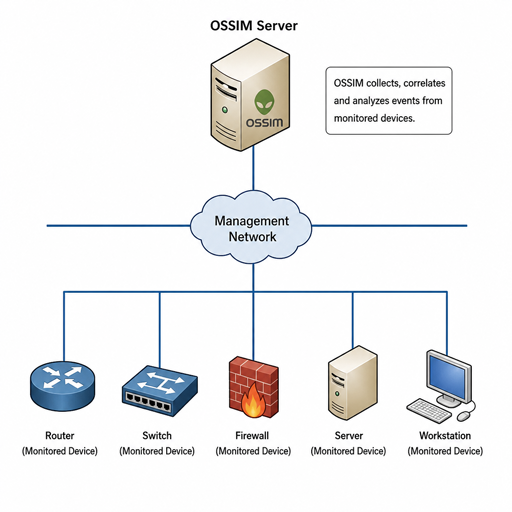
AlienVault OSSIM is a free, open-source SIEM platform used for security monitoring, log collection, event correlation, asset discovery, and hands-on security learning. This practical OSSIM tutorial walks through planning, installing, configuring, and validating a basic deployment so you can move from a downloaded ISO to a working monitoring console. The goal is not just to complete the OSSIM installation, but to avoid the common setup mistakes that keep new deployments from collecting useful data.
What should you prepare before installing OSSIM?
Before starting an OSSIM setup, prepare the host system, network details, and installation media so the installer can complete cleanly and the web console is reachable afterward. A little planning matters because OSSIM is more than a single dashboard; it needs enough CPU, memory, storage, and network access to receive events, discover assets, and correlate security activity.
For a small lab or learning environment, many users install OSSIM in a virtual machine. For a production-style test, a dedicated physical machine or a properly sized hypervisor host is better. A practical baseline is 4 CPUs, 4–8 GB of RAM, at least 60 GB of disk space, and two network interfaces if possible. One interface can serve management access, while the other can receive logs, mirrored traffic, or sensor data.
You should also decide the IP address, subnet mask, gateway, DNS server, hostname, and admin password before you begin. If you are installing in a network with strict firewall rules, confirm that your workstation can reach the OSSIM management IP over HTTPS after installation.
Choosing the right installation environment
OSSIM can be installed on bare metal or in a VM, and the right choice depends on your purpose. A bare-metal install is useful when you want reliable interfaces, dedicated resources, and a more realistic appliance-like deployment. A virtual install is easier for labs, training, screenshots, rollback testing, and temporary evaluations.
Common VM options include VMware, VirtualBox, KVM with virt-manager, and lab platforms such as EVE-NG. VMware and KVM are strong choices when you want stable networking and resource control. VirtualBox is convenient for quick local testing, but you need to pay close attention to network adapter modes, especially if OSSIM must see other devices on your network.
Use this quick comparison before you commit:
|
Environment |
Best for |
Watch out for |
|---|---|---|
|
Bare metal |
Dedicated monitoring, realistic interface layout |
Hardware compatibility and less flexible rollback |
|
VMware ESXi/Workstation |
Stable labs and persistent deployments |
Correct virtual NIC mapping |
|
VirtualBox |
Local learning and simple testing |
Adapter mode and limited performance on small hosts |
|
KVM |
Linux-based labs and efficient virtualization |
Bridge networking permissions |
|
EVE-NG |
Network security labs |
Template settings and nested resource limits |
If you are following an older ossim 5 2 installation guide, use it mainly for conceptual flow, not as your only reference. Screens, package versions, and download locations may differ over time, so always confirm the current ISO and installation notes from the official source before building a new system.
Downloading the OSSIM installation image
Start by downloading the OSSIM ISO image from the official AlienVault OSSIM download source. Avoid random mirrors, repackaged images, or outdated links from forum posts. If you searched for an alienvault ossim installation guide pdf, it may be useful as a printable companion, but the ISO itself should still come from the official download page.
After downloading, store the ISO somewhere easy to attach to your server or VM. If checksums are provided, verify the file before installation. This simple step protects you from corrupted downloads and saves time troubleshooting a failure that has nothing to do with your hardware or settings.
For a VM install, create a new virtual machine and attach the ISO as the boot media. Choose a 64-bit Linux profile if your hypervisor asks for an operating system type. Assign the virtual disk, CPU, RAM, and NICs before the first boot so the installer sees the expected hardware from the beginning.
A sensible VM starting point is:
- CPU: 4 virtual CPUs for a responsive lab system.
- Memory: 4 GB minimum for light testing; 8 GB is more comfortable.
- Disk: 60 GB or more, with room for logs and events.
- Network: One management NIC, plus a second NIC if you plan to collect traffic or separate monitoring paths.
- Boot media: OSSIM ISO attached as a virtual CD/DVD.
Installing OSSIM from the ISO
Boot the machine or VM from the ISO and follow the installer prompts. The exact screen wording can vary by release, but the installation flow is usually straightforward: choose the installation option, configure basic system details, select storage, confirm changes, and allow the installer to copy files.
During disk setup, be careful. On a physical machine, the installer may overwrite the selected drive. In a VM, this is usually expected because the virtual disk is dedicated to OSSIM. If you are experimenting on hardware with existing data, stop and verify the target disk before continuing.
The installer will ask for network information. Use a static IP address whenever possible because you will access the web interface through this address later. Dynamic addressing can work in a lab, but it creates avoidable confusion when the IP changes and the browser can no longer reach the console.
A clean installation flow looks like this:
- Boot from the OSSIM ISO. Confirm that the system starts from the installer instead of an empty disk.
- Select the install option. Use the default installation path unless your environment requires custom storage choices.
- Configure networking. Enter IP address, netmask, gateway, DNS, and hostname carefully.
- Set passwords when prompted. Use strong credentials and store them securely.
- Confirm disk partitioning. Make sure the installer is writing to the intended disk.
- Let installation complete. Do not interrupt the system while packages and base services are installed.
- Reboot and remove the ISO. If the ISO remains attached, the VM may boot back into the installer.
When the system restarts, it should display console information that helps you continue configuration. At this point, the main installation is complete, but OSSIM is not yet very useful until you finish the initial web setup and confirm that events can reach it.
How do you complete the initial OSSIM setup?
You complete the initial OSSIM setup by accessing the web interface over HTTPS, creating or confirming the administrator account, checking network settings, and configuring the system to monitor your environment. The installation gets the platform running; the first login turns it into a usable SIEM.
From a browser on the same reachable network, open the OSSIM management IP using HTTPS. Your browser may warn about the certificate, especially in a lab environment. After you continue, follow the first-run prompts to create the admin account or complete the initial configuration requested by your installed version.
Once inside the web interface, review the management settings before adding data sources. Confirm the hostname, IP address, DNS, gateway, and time settings. Time synchronization is especially important in a SIEM because logs from different systems must line up correctly during investigation.
Next, begin with a small monitoring scope. Do not try to onboard every device on the first day. Choose a firewall, a Linux server, a Windows host, or a small subnet, then make sure OSSIM can receive and display events from that source. This narrow start makes troubleshooting much easier.
Use this minimal post-install checklist:
- Change or confirm all default credentials.
- Verify the management IP is reachable over HTTPS.
- Confirm DNS, gateway, and time settings.
- Define the local networks or assets you want to monitor first.
- Add one or two log sources before expanding.
- Check that events appear in the web UI.
- Review alarms and dashboards for expected activity.
- Document the IP address, admin access process, and monitored subnets.
This is the point where an alienvault ossim installation guide becomes more than a server build document. You are now shaping what the SIEM sees, how it groups assets, and which events deserve attention.
Configuring assets, sensors, and log collection
OSSIM depends on visibility. If it cannot identify assets or receive events, the dashboard may look empty even though the installation was successful. Start by defining your key network ranges and important systems so the platform has context for event correlation and alarms.
Asset discovery can help identify hosts on a network, but you should still review the results. Rename important assets in a way your team understands, such as firewall, domain controller, VPN gateway, database server, or lab workstation. Clear naming helps during investigations because you can understand an alarm quickly without decoding an IP address every time.
Sensors collect and process security data. In a basic all-in-one deployment, the server may handle management and sensor functions together. In more advanced environments, sensors can be placed closer to monitored networks. For a first installation, keep the design simple and prove that one sensor path works before distributing collection across multiple segments.
Log collection should be introduced gradually. Configure one source, validate events, then add the next. Firewalls, authentication servers, endpoint agents, and Linux syslog sources are common starting points. If Host Intrusion Detection is part of your plan, deploy it first to a small number of test systems and confirm that alerts are meaningful before rolling it out more widely.
OSSIM can also use correlation and threat intelligence features, including integration with AlienVault Open Threat Exchange, often called OTX. In practical terms, this helps enrich security events with broader threat context. Still, enrichment works best when your local asset inventory and log sources are accurate.
Using the web interface after installation
After the OSSIM installation is complete and data sources are connected, spend time learning the main areas of the web interface. Dashboards give you a high-level view, while event and alarm sections help you investigate what the system is collecting. Asset management helps keep your environment organized, and policy or directive areas influence how events become meaningful alerts.
A useful first exercise is to generate known, harmless activity and watch for it in OSSIM. For example, log in to a monitored server, trigger a permitted firewall event, or restart a test service that sends logs. Then search for the event in the interface and confirm the source, destination, timestamp, and event type are shown as expected.
Do not judge the deployment only by whether alarms appear immediately. A quiet system may mean your environment is calm, but it can also mean logs are not arriving, parsing is incomplete, or assets are not properly defined. Check raw events, normalized events, and alarm views so you understand where the data is flowing.
As you build confidence, tune your deployment in stages:
- Add critical assets first, then less important systems.
- Group assets by subnet, function, or business role.
- Review alarms daily during the first week of use.
- Suppress or tune noisy events only after you understand them.
- Keep notes on every log source, sensor, and policy change.
This staged approach keeps your OSSIM setup manageable and reduces the risk of building a noisy SIEM that everyone eventually ignores.
Common installation problems and practical fixes
Many OSSIM installation issues come from resource limits or networking mistakes. If the installer is slow, crashes, or the web UI performs poorly, check CPU, RAM, and disk allocation first. A VM with too little memory may technically boot but still feel unreliable once event processing begins.
If you cannot reach the web interface, confirm that the OSSIM server has the IP address you expected. Check the VM network adapter mode, host-only versus bridged networking, gateway settings, and local firewall rules. In VirtualBox especially, a NAT adapter may let OSSIM reach the internet while preventing other devices from reaching the OSSIM web console in the way you expect.
If logs are not appearing, test basic connectivity before changing OSSIM settings. Confirm that the source device is sending logs to the correct IP, that the right protocol and port are used, and that no firewall is blocking the path. Then verify that the source is included in the asset or network scope you intend to monitor.
If asset discovery is incomplete, remember that discovery depends on network reachability and scanning permissions. Segmented networks, host firewalls, and restricted lab adapters can hide systems from discovery. Add critical assets manually if discovery does not find them automatically.
When troubleshooting, change one thing at a time. Rebooting, changing adapters, modifying IP settings, and adding log sources all at once makes it harder to know what solved the problem. Keep a short build log so you can repeat the deployment later or explain it to a teammate.
A simple first-day validation plan
A good ossim installation guide should leave you with a working validation path, not just a login screen. On day one, your goal is to prove that OSSIM is reachable, receiving data, identifying assets, and producing information you can investigate.
Follow this short validation plan:
- Confirm access. Log in to the web UI from your admin workstation.
- Check system health. Review basic service status, storage, and interface settings.
- Verify assets. Add or discover a small test subnet.
- Connect one log source. Start with a firewall, Linux syslog source, or test server.
- Generate test activity. Create a login, connection, or service event you can recognize.
- Search events. Confirm the activity appears with the right time and source.
- Review alarms. See whether any correlated events require attention.
- Document the result. Record what works and what still needs tuning.
This gives you a repeatable baseline. If you later add more sensors, HIDS agents, directives, or OTX enrichment, you can compare those changes against a known working setup.
Final takeaways
Installing OSSIM is not difficult when you prepare the host, use the official ISO, assign stable network settings, and complete the first-run configuration carefully. The real value comes after installation, when you define assets, connect log sources, validate events, and tune alarms so the system reflects your environment.
Use this alienvault ossim installation guide as a practical path from download to first useful security data. Start small, verify each step, and expand only after your first monitored systems are reporting correctly. That approach will save time, reduce noise, and help you build confidence with OSSIM as a learning platform or a cost-conscious security monitoring tool.
